Want this set up for you?
If you run an owner-led 5-25 person business and want practical AI agents doing real work without learning all of this yourself, Growth Academy sets it up with you.
See Small Business AI Agent Setup →Short answer: Set up the Codex sandbox correctly so your AI agent has a safe, organized place to work on real business projects.
When you log into Codex for the first time, you'll see a "Set Up Sandbox" prompt almost immediately. Most business owners click through it without thinking. Some skip it entirely and jump straight to connecting plugins or issuing tasks.
Both approaches are mistakes.
The sandbox is not a technicality. It is the container Codex lives and operates in: the designated environment your agent calls home on your machine. Every task Codex runs, every file it touches, every automation it builds executes inside this container. What you configure here sets the terms for everything that follows.
This post covers exactly what the sandbox is, how to set it up correctly, and the most common mistakes business owners make in the first fifteen minutes that quietly break everything they try to build afterward.
For the complete framework, read the full guide.
What the Sandbox Actually Is
Think of the sandbox like a designated workstation inside your computer: a zone where Codex operates, stores its working files, runs its commands, and maintains its environment. It is isolated from the rest of your machine in a meaningful way, but it connects outward to your files, your cloud storage, and your plugins.
The analogy I use: it is a literal sandbox on a playground. Everything Codex does happens in that sandbox. The edges matter. What you put inside matters. And what permissions you grant within that space determine whether Codex can actually move freely or is constantly hitting invisible walls.
This is the foundational layer. Not the most exciting step in the setup process, but the load-bearing one. Skip it or configure it wrong and every layer above it (plugins, automations, skills, the Agent Home Base) becomes less stable.
The Two Things You Must Decide Before You Click Anything
Before you configure the sandbox itself, two decisions need to be made. Most business owners make neither consciously, which is why the setup causes problems later.
Decision 1: Where will Codex's work live?
The sandbox defaults to local storage, meaning everything Codex produces lives on your machine. That is a risk. If your computer is lost, damaged, or replaced, the work is gone. You need to decide upfront whether your cloud backup is Google Drive, Dropbox, or GitHub, and configure that routing before Codex starts producing output.
From my own setup: I migrated away from iCloud as my primary option because Codex flagged it directly: the root structure was too large and too mixed to be reliably accessible for agent retrieval. Google Drive became my primary cloud storage. If your business runs primarily on Dropbox, that can work, but the decision needs to be made deliberately, not after the fact.
Learn about cloud storage strategy for Codex. This decision deserves its own post, and I've written it.
Decision 2: What level of access will you grant?
This is the bigger one. The sandbox setup is where permissions are first established. If you leave Codex on "failure," "untrusted," or "read-only" at this stage, you will spend the next several hours approving micro-decisions manually and wondering why your agent feels slow and broken.
It is not broken. It is cautious. And you made it that way.
Learn how to configure permissions correctly. Full access is non-negotiable for agentic operation, and I explain exactly why there.
Setting Up the Sandbox: What to Configure and Why
Here is the exact setup sequence that matters:
| Setting | Correct Configuration | Why It Matters |
|---|---|---|
| Sandbox initialization | Complete it, do not skip or dismiss | Everything Codex runs lives here |
| Cloud storage routing | Set before any task runs | Local-only means work disappears if the machine is lost |
| Permissions | Full access | Restricted permissions paralyze the agent at every micro-step |
| Work Mode | Set to "Coding" and leave it | Even non-technical tasks run better under this mode |
| Prevent Sleep While Running | Toggle ON | Codex goals can run 24-36+ hours; sleep kills mid-task execution |
| Speed | Leave at Standard | Fast mode burns credits significantly faster, so this is a billing decision |
| Suggested Prompts | Toggle off | Distracting and rarely useful once you know what you're doing |
The Sleep setting is one most business owners miss entirely because it sounds minor. It is not. Codex can run goals that last 24 to 36 hours or longer. If your computer goes to sleep mid-task, Codex stops. The task doesn't pause cleanly. It breaks. Toggle Prevent Sleep on before you run anything.
The Exact Click Path: Set the Sandbox to Full Access
The table above is the what. This is the how, screen by screen, the same path I walk on my own machine. It comes in two parts. Part 1 changes the sandbox setting. Part 2 is what you do when the change does not stick the first time, which happens often enough that it is worth showing.
Part 1: Switch the Sandbox to Full Access
Step 1. Open the sidebar at the top left, then click Settings at the bottom left.

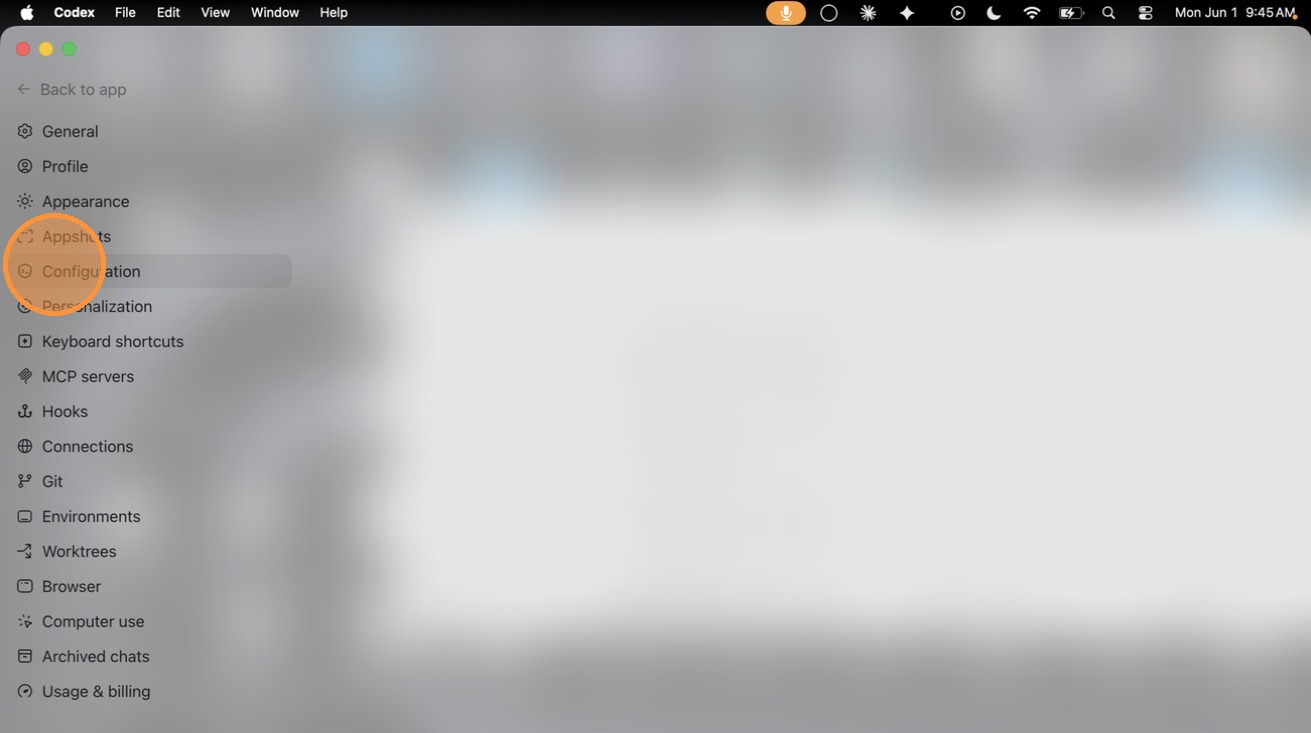
Step 2. Click Configuration in the settings sidebar. This is where the approval policy and the sandbox settings live.
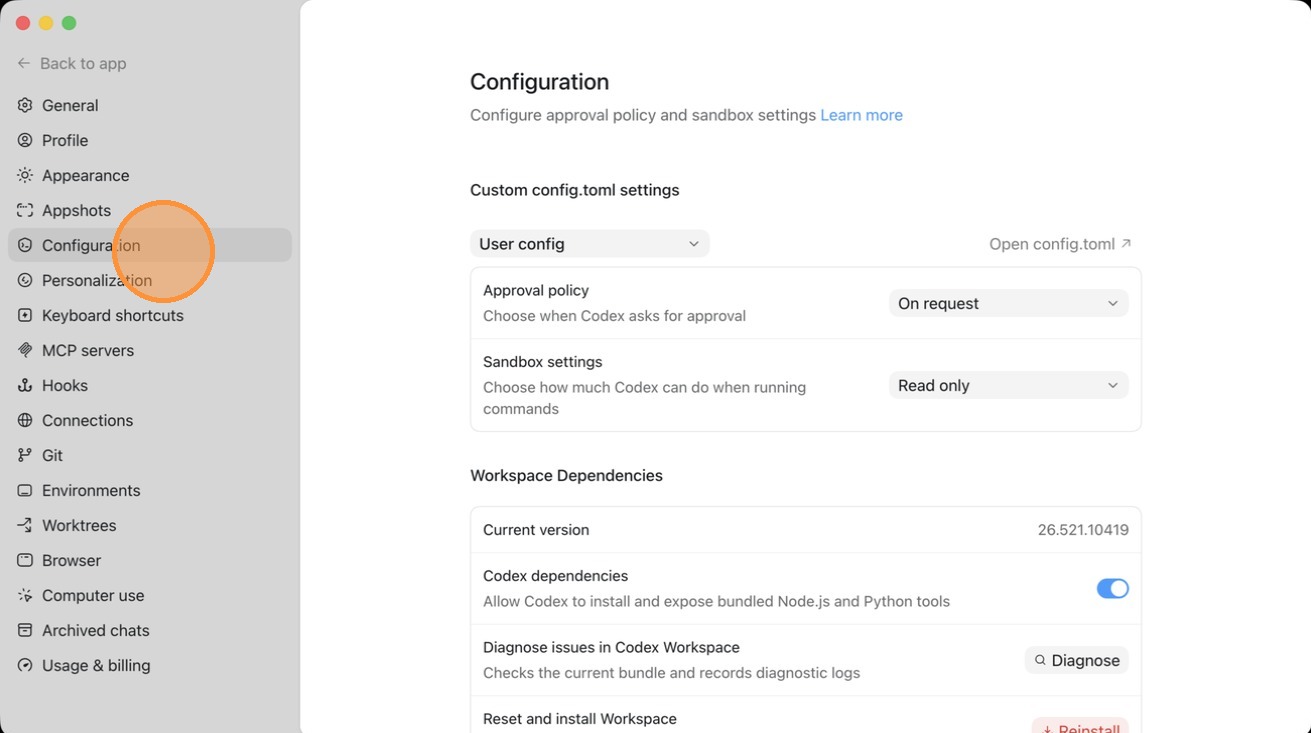
Step 3. Find the Sandbox settings row. It is labeled "Choose how much Codex can do when running commands," and it is almost certainly set to Read only right now.
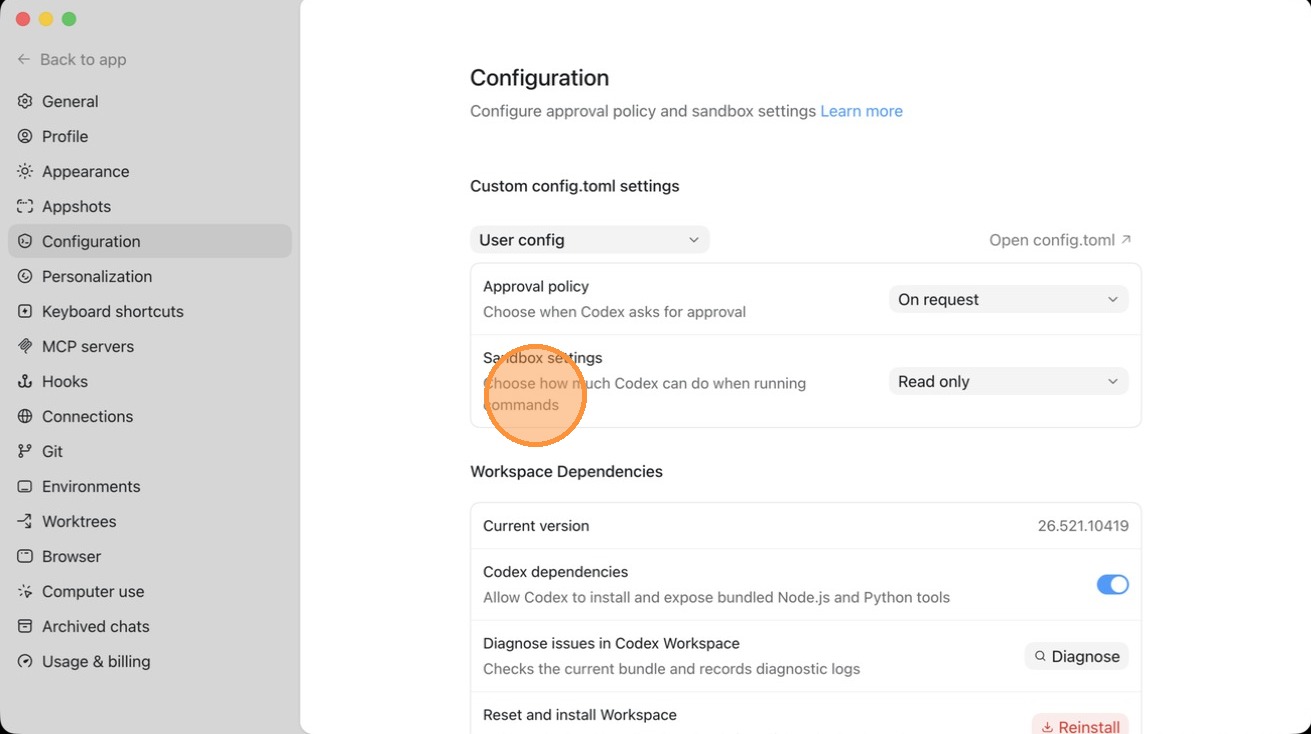
Step 4. Click the Read only dropdown. You will see three levels: Read only (can read files but not edit them), Workspace write (can edit files, but only inside this workspace), and Full access (can edit files outside this workspace).
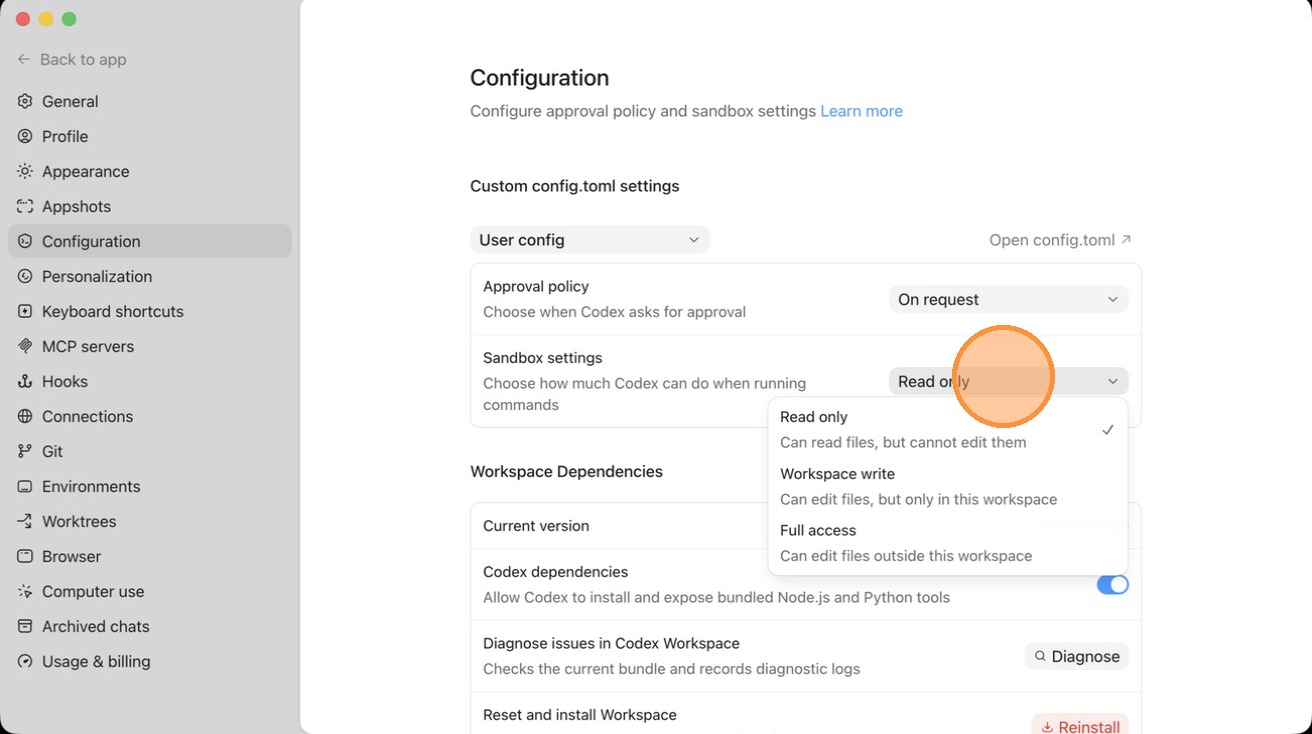
Step 5. Choose Full access. This is the setting that lets the agent actually operate instead of stopping to ask permission at every step.

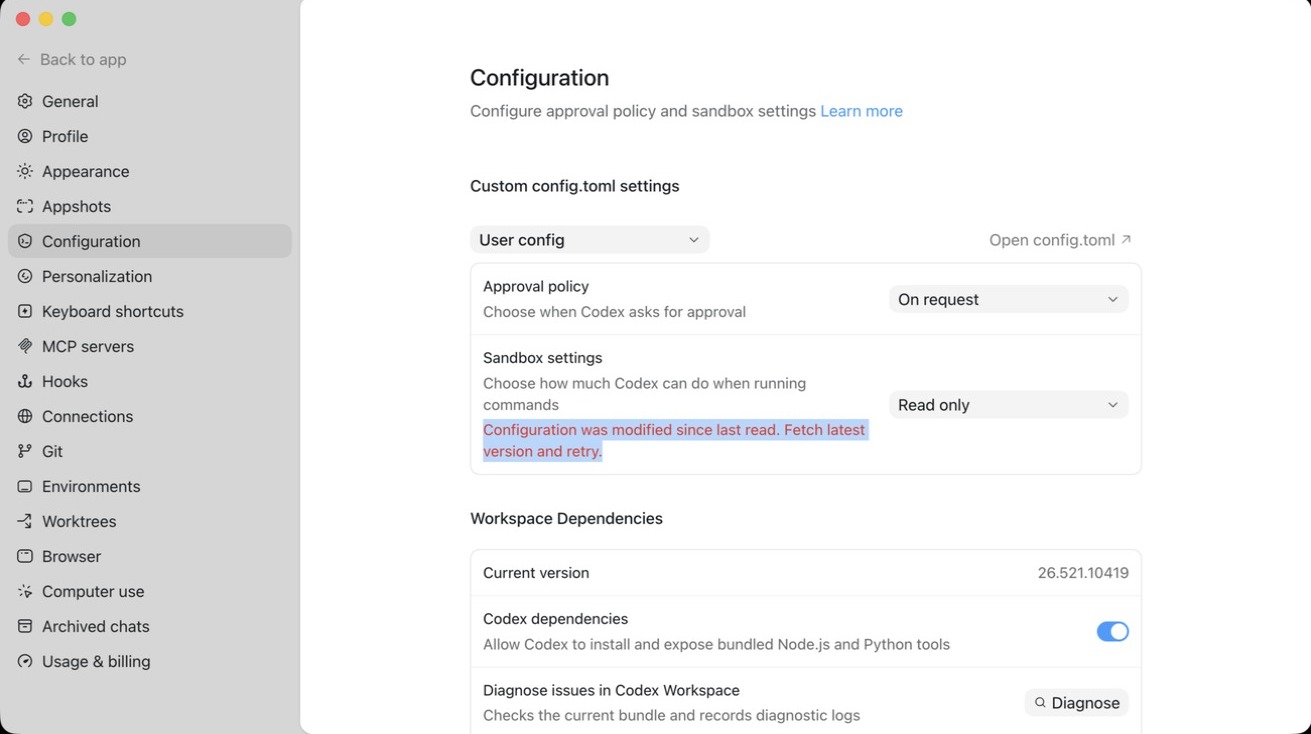
Step 6. If you see the message "Configuration was modified since last read. Fetch latest version and retry," the change has not saved yet. That is the normal hiccup, not a sign anything is broken. Copy the message if you want a record of it, then move to Part 2.
Part 2: Restart, Confirm It Saved, and Set Your Chat to Full Access
This is the part most people miss. Changing the setting is not enough if Codex is still holding an older copy of the configuration. A clean restart makes the change take, and then you set the same permission level on the chat you are actually working in.
Step 1. Quit Codex completely. On a Mac, right-click the Codex icon in the dock and choose Force Quit. A normal close is not always enough here. You want it fully shut down.
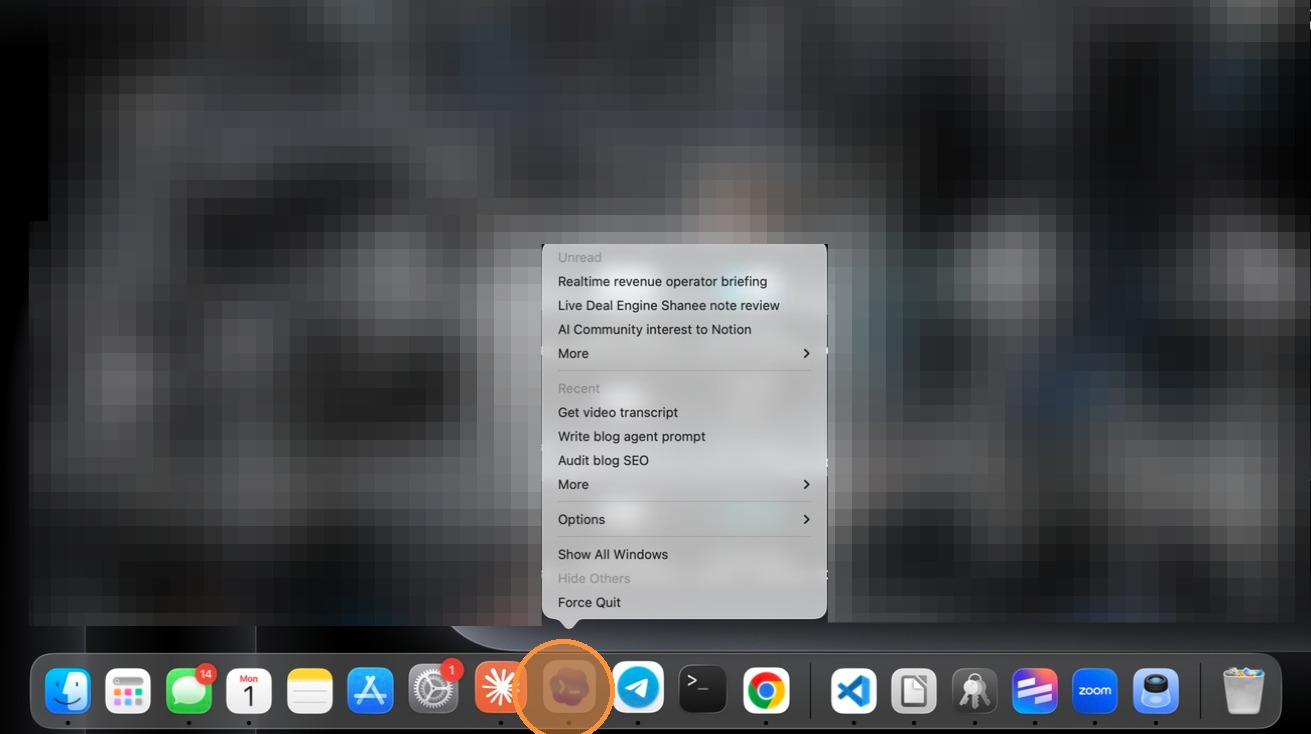
Step 2. Reopen Codex, then click Settings at the bottom left again.
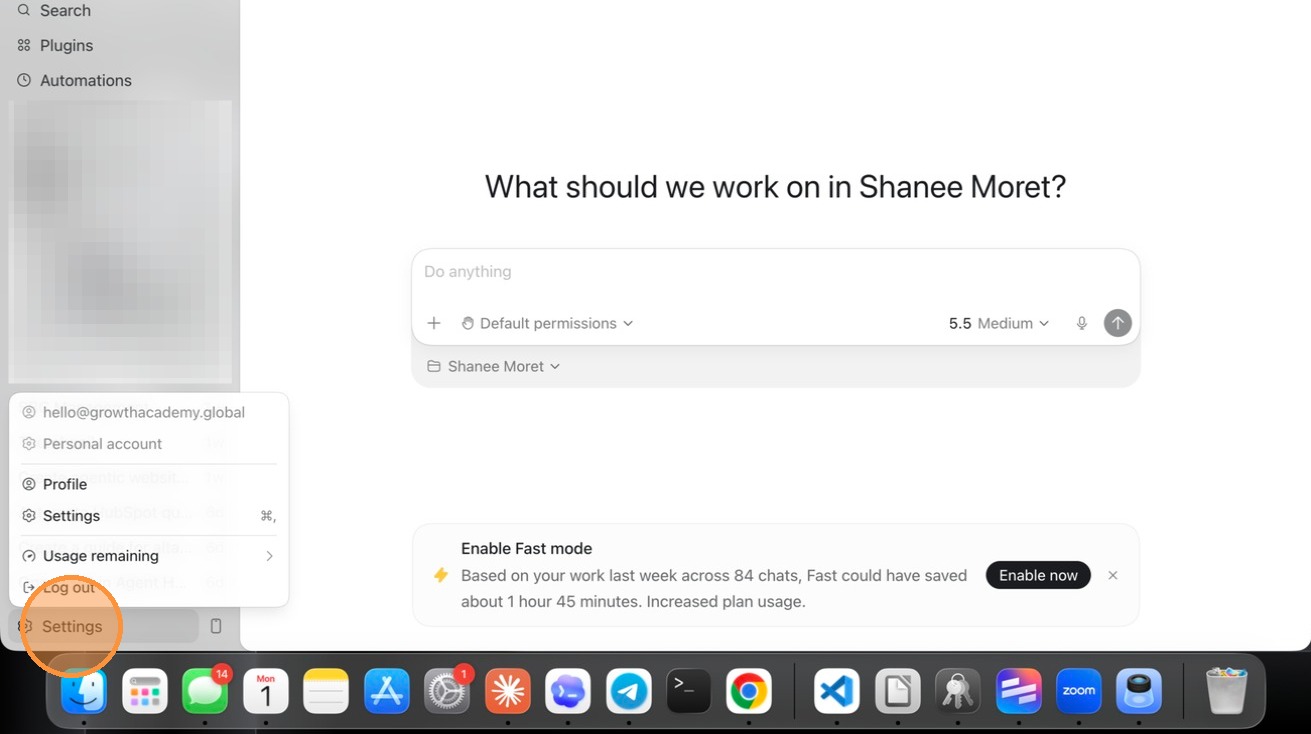
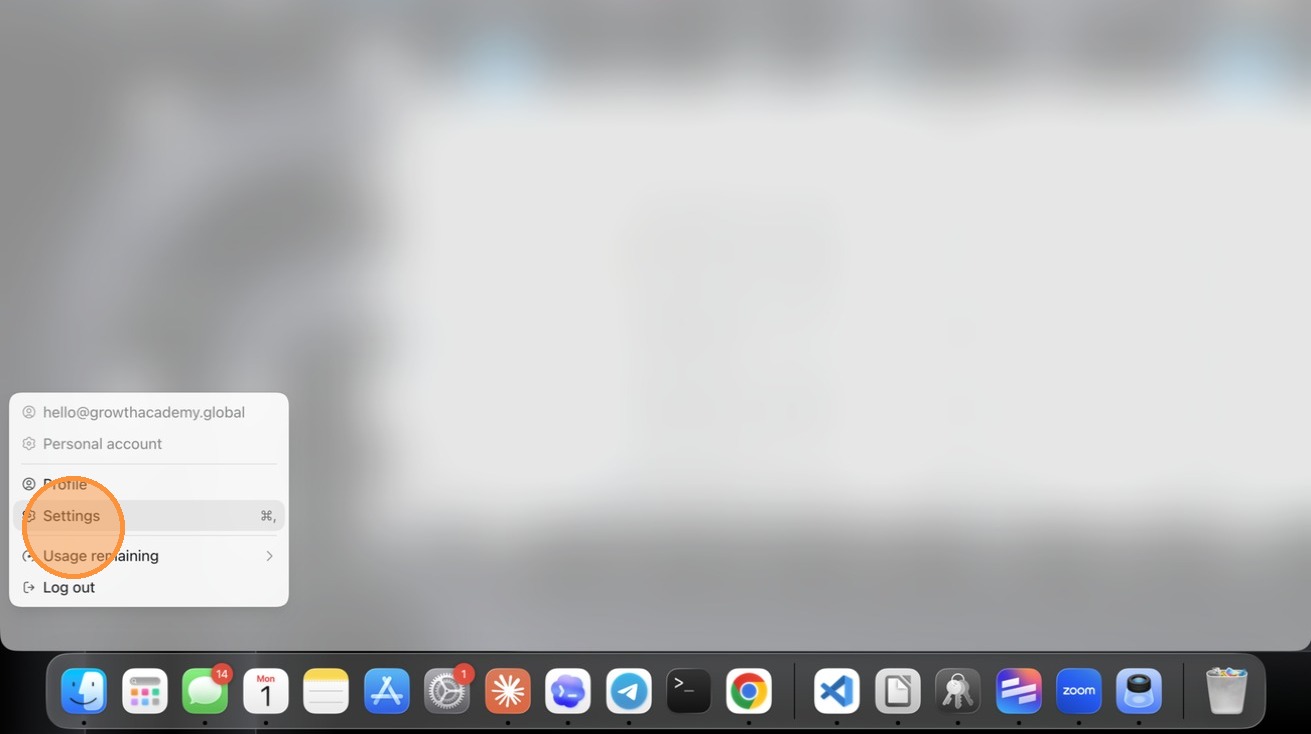
Step 3. Select Settings from the menu.
Step 4. Go to the Configuration tab in the sidebar.
Step 5. Confirm Sandbox settings now reads Full access instead of Read only. If it does, the change saved. If it still says Read only, repeat Part 1 and quit fully again.
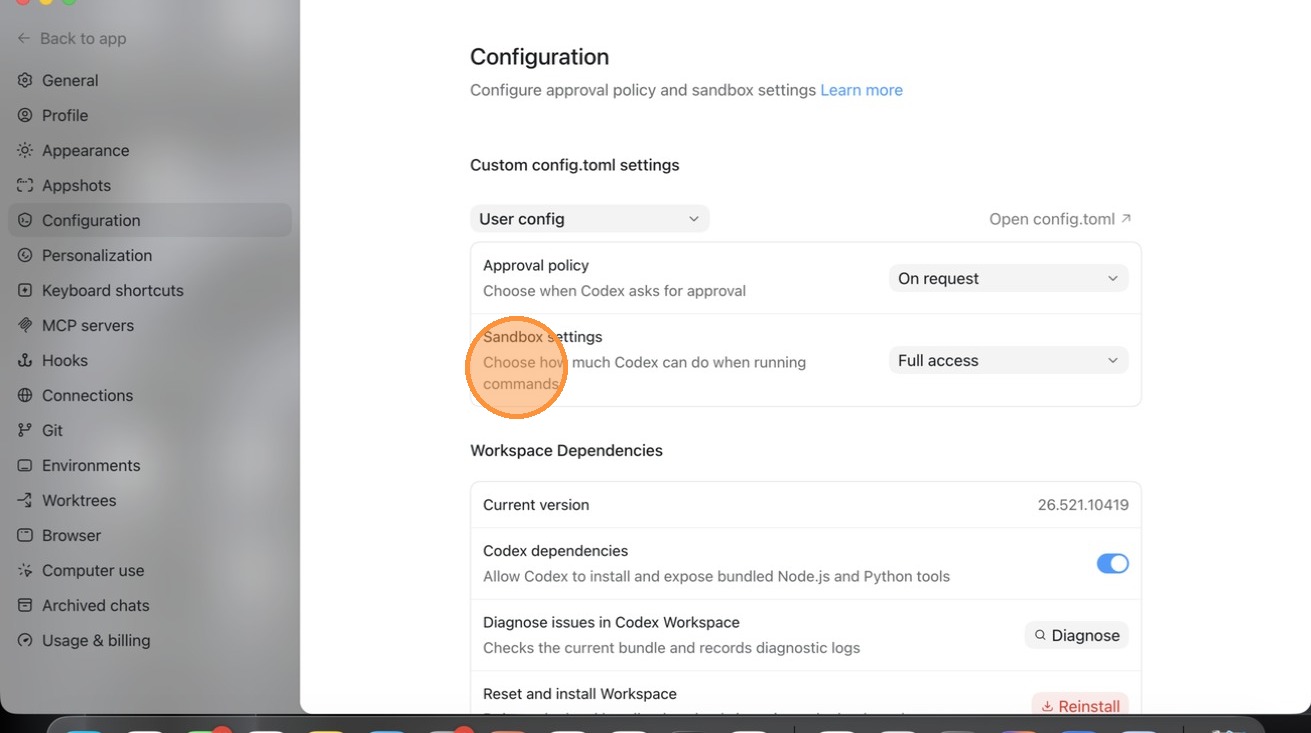
Step 6. Click Back to app.
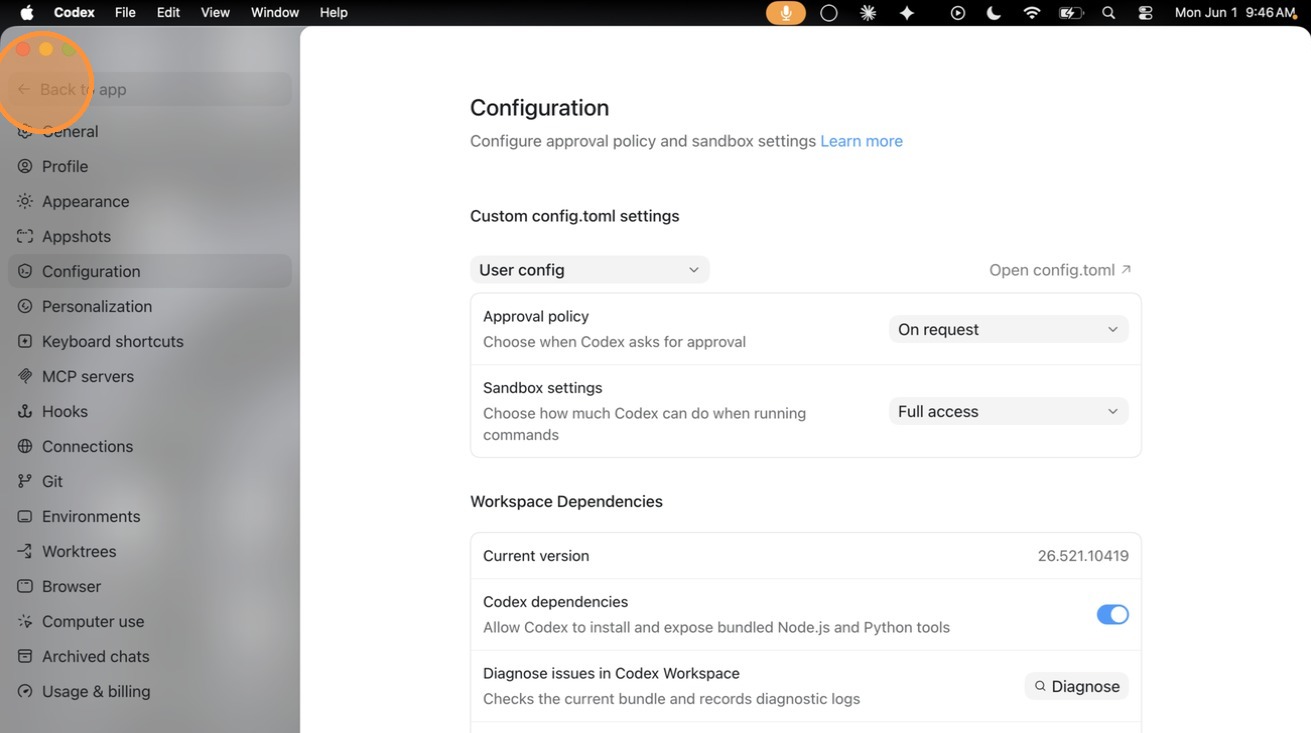
Step 7. Open a new chat. The sandbox setting you just changed is the machine-level default. The chat itself carries its own permission level, and that is the next thing to set.
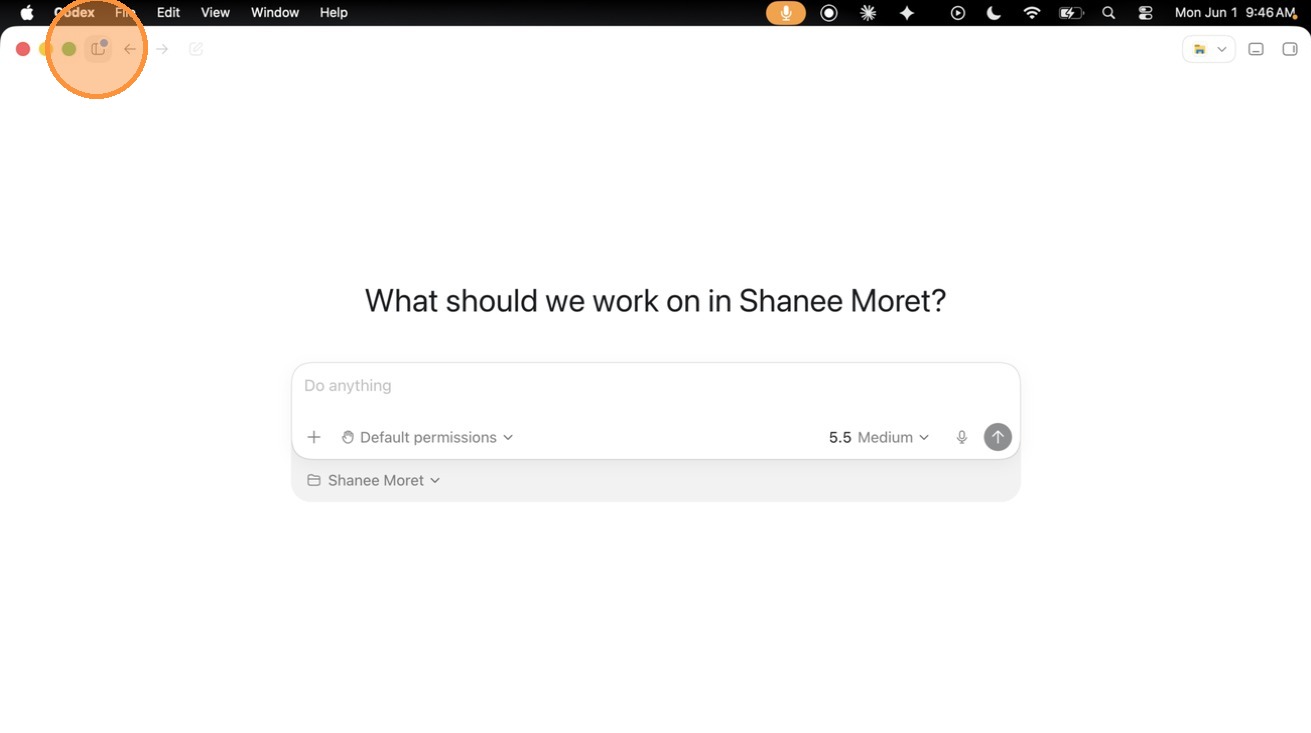
Step 8. Click Default permissions, then choose Full access. The menu also offers Auto-review and Custom (config.toml), but Full access is what lets the agent run without stopping for approval on each step.

Step 9. The chat now shows Full access. This project or chat is operating at full permissions.
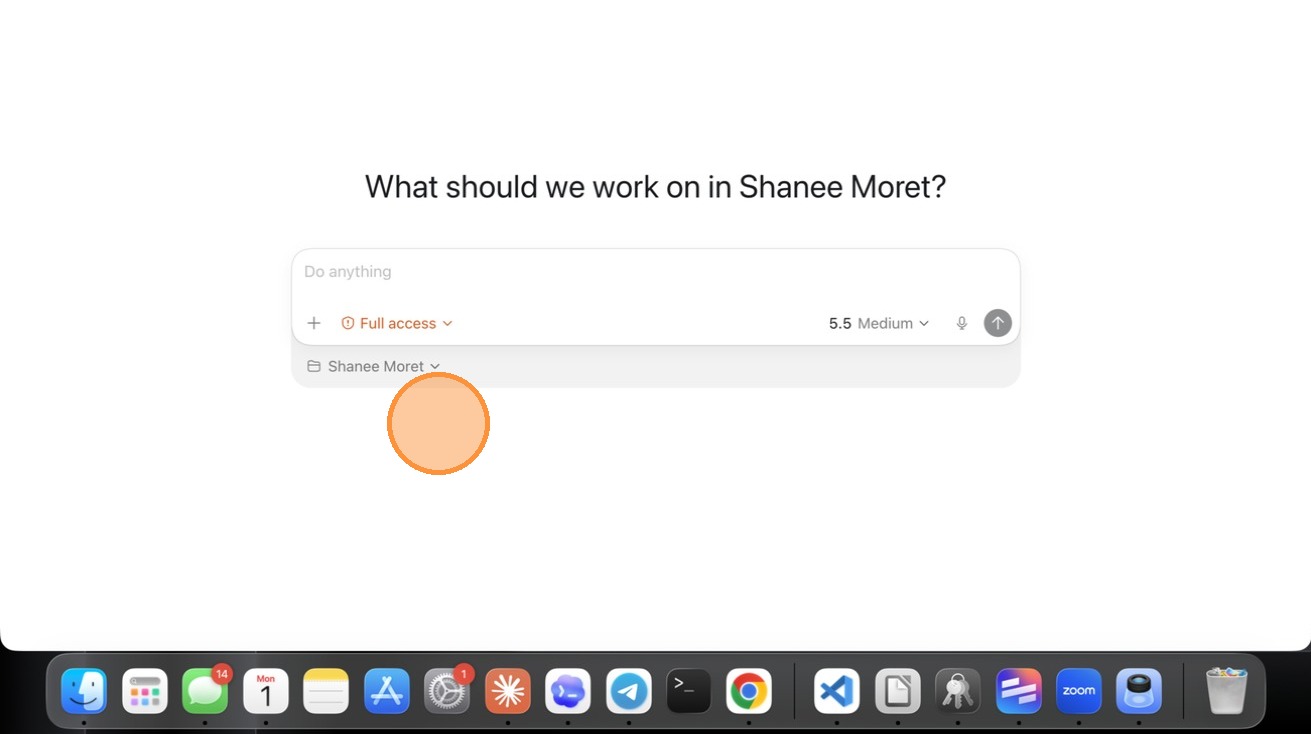
Step 10. Verify it with the agent directly. Type: "I want to confirm that you have full sandbox settings. If you do not, what do I need to do for that to happen?" Read the answer. When it is set correctly, Codex confirms full filesystem access (it shows as danger-full-access), network enabled, and approval policy never, which means it can read and write files and run commands without stopping to ask.

Do not skip Step 10. Confirming with the agent directly is the difference between assuming you have full access and knowing it. If the answer comes back with anything other than full access, you have your answer about what still needs to change.
The Permissions Problem: Why It Shows Up Here
When you're inside the sandbox settings, you'll see permission options. The temptation is to start restrictively: "I'll give it full access later, once I understand it better."
The problem: restricted permissions don't protect you. They stop Codex at every micro-step and require manual approval for file reads, folder access, browser navigation, and command execution. What you've built at that point isn't an agent. It is a slower version of doing the work yourself, with more steps.
If you can't change the permission setting directly in the UI (which happens), the fix is straightforward: copy the error message, open a Codex chat, and use the permissions setup prompt from the Skills Dashboard to have Codex resolve it from your machine directly.
On Mac specifically: when you toggle on Computer Use and Browser Use, macOS may surface accessibility or screen recording permission pop-ups. Read every one of them before approving. If the wording doesn't match what Codex told you it would do, do not approve it. Ask Codex to describe the pop-up first. That's not paranoia. It's the right habit.
The Most Common Mistake in the First Fifteen Minutes
The mistake I see most often isn't skipping the sandbox setup entirely. It's completing it too fast and assuming the defaults are fine.
They are not.
The default configuration leaves business owners with:
- Local-only storage (no cloud backup)
- Restricted permissions
- Sleep prevention off
- Speed left on Fast (which burns credits)
None of these are catastrophic in isolation. Combined, they produce a system that runs slowly, stops when your computer sleeps, burns through your monthly credits in days, and loses work if anything happens to your machine.
Each of these defaults requires a deliberate override. The setup screen is where you make those overrides, not after you've already run a 30-hour goal and lost the output.
What the Sandbox Enables Once It's Done
Once the sandbox is properly configured, it becomes invisible in the best way. You stop thinking about it. Codex simply operates.
From here you can:
- Connect plugins and have Codex actually retrieve data through them
- Set up named environments for specific projects so work stays separated
- Run onboarding skills without hitting permission blocks at every step
- Issue long-duration goals without worrying about sleep interrupting them
The sandbox is not the interesting part of working with Codex. But it is the part that determines whether all the interesting parts work.
Before You Move On
Run through this checklist before you proceed to any other setup step:
- Sandbox initialized, not dismissed or skipped
- Cloud storage routing decided and configured (Google Drive, Dropbox, or GitHub)
- Full access granted in sandbox permissions
- Prevent Sleep While Running toggled on
- Speed set to Standard
- Computer Use toggled on
- Browser Use (Google Chrome) toggled on
- Suggested Prompts toggled off
- Mac users: macOS accessibility pop-ups reviewed and approved deliberately
If any of these are unchecked, fix them before running any skills or issuing any tasks. The onboarding skills, including the permissions audit, should be your first actions after this list is complete.
The Foundation Phase is not glamorous. But everything you build on top of it depends on what you do here.
Shanee
Use the prompts behind this system
The Growth Academy Skills Dashboard includes 100+ Codex skills and prompts for SMB owners.
See the Skills Dashboard →